Use the WYSIWYG editor to format course, module, and topic descriptions
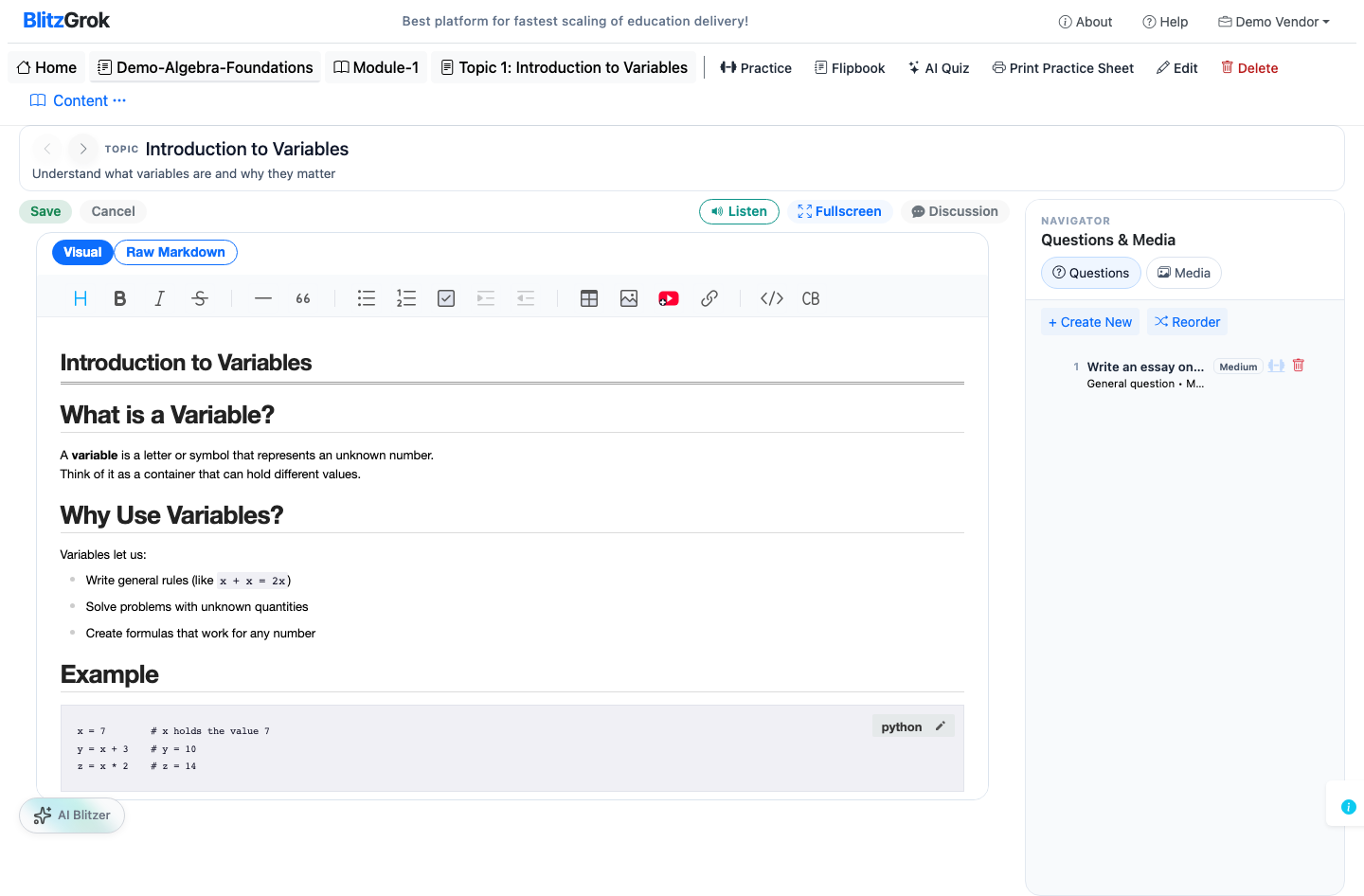
Course, module, and topic descriptions use a WYSIWYG editor (What You See Is What You Get). Format content visually — no Markdown or HTML required.
Headings, bold, italic, strikethrough. Structure content with clear hierarchy.
Bulleted lists, numbered lists, task lists, blockquotes, horizontal rules.
Inline code, code blocks with syntax highlighting, hyperlinks.
Insert tables, upload images, and embed media directly.
One-click video insertion — paste any YouTube URL. See the YouTube embed guide.
Toggle between Visual (WYSIWYG) and Raw Markdown modes for precise control.
Descriptions on detail pages can be viewed in two modes, toggled from the top-right of the description panel:
Content organized into collapsible sections by heading. Click a heading to expand that section. Default view.
Content split into pages at each heading. Navigate with Prev/Next buttons. Best for step-by-step walkthroughs.
# Heading for section titles — these become accordion sections or page breaks.<div markdown="0">...</div> to prevent the Markdown parser from altering them.<div markdown="0">...</div> to prevent the Markdown parser from altering it.We're here to help